
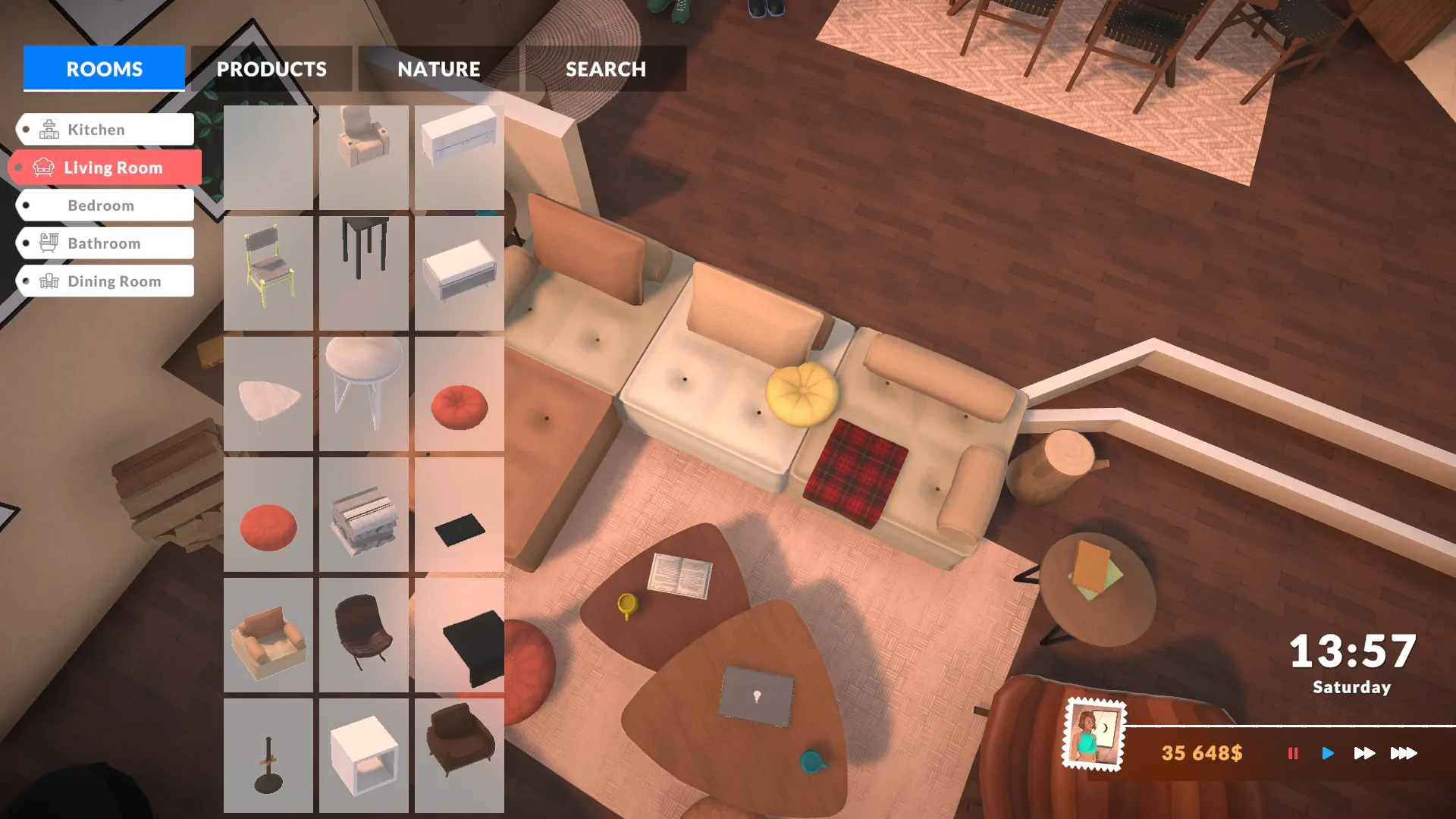
Moving a household in Paralives isn't just a checkbox — it's a full re-zoning of the family. Funds, inventory, furniture, relationships and ongoing storylines all move with them, and the game handles the bookkeeping behind the scenes. This guide covers every legal way to relocate Parafolk and the gotchas that catch people the first time.
Quick answer
Open the World Map (M), click the household portrait in the top right, choose Move Out, then pick an empty lot or another owned home. Confirm — the family packs, your funds carry over, and you land in Live Mode at the new address.
What actually moves with you
- Household funds — your full Parabucks balance transfers, minus the price of the new lot (if buying).
- Personal inventory — anything in each Parafolk's pocket inventory comes along automatically.
- Family inventory — collectibles, gifts and gardening produce stored in the household chest move with the family.
- Relationships and storylines — friendships, romances, and active goals are preserved 1:1.
- Skills, traits, careers — fully retained. The new commute updates automatically.
- Furniture — your call. The move dialog lets you take everything, take nothing, or sell off items you don't want to repack.
Moving into an empty lot
- 01Open the World Map with
Mor the world button in the top-right. - 02Click the active household portrait, then
Move Household. - 03Filter the map for
Empty lots— they're marked with a dashed outline. - 04Pick one and confirm. The lot price is deducted from household funds; if you can't cover it, the option is greyed out.
- 05Choose whether to take all furniture, take nothing, or sell unwanted items at full price.
- 06Confirm — the loading screen reseats the family on the new lot.
If you'd rather drop into a pre-built home, our build-mode mod picks include free Workshop houses you can place on an empty lot before moving in.
Moving into an existing house
Buying a furnished lot is identical to the empty-lot flow, but the dialog gains a second question: do you want to keep the existing furniture or replace it with your own?
- Keep existing furniture — the old furniture stays, yours goes into family inventory.
- Replace with yours — old furniture is sold at full price (refunded to the new household), yours is placed where it can fit.
- Mix — pick
Manage Inventoryafter the move to drag items between household inventory and the room.
Swapping two households between lots
There's no one-click swap, but the safe pattern is to move one family out to a free empty lot first, then move the second family into the now-empty house, then move the first family in. The game treats each step atomically, so a crash mid-sequence won't lose anyone.
- 01Save first —
Ctrl+Smakes a snapshot you can fall back to. - 02Move Family A to any empty lot in the world (or to a cheap holding lot you keep for this purpose).
- 03Switch active household to Family B and move them into Family A's old address.
- 04Switch back to Family A and move them into Family B's old address.
- 05Save again to lock the new layout in.
Merging households
Moving a Parafolk INTO an existing household rolls their funds and personal inventory into the destination family. Their existing home reverts to an empty lot unless someone else still lives there.
- 01Open
Manage Householdsfrom the World Map. - 02Drag the Parafolk's portrait onto the destination household card.
- 03Confirm — the game asks whether to bring their funds (recommended) and which traits to keep if the move triggers a household-size cap.
Evicting and demolishing
- Evict — moves the family to the household bin without a destination lot. They keep funds, inventory and relationships and can be placed later.
- Demolish — wipes the lot back to terrain. The family is automatically evicted to the bin first; you don't lose them.
- Sell furniture only — open Build Mode and use
Sell Allfrom the household inventory; the family stays put.
Common bugs and fixes
- Missing furniture after a move — open Manage Inventory; items that didn't fit in the new floor plan are stashed there, not deleted.
- Funds frozen at 0 — usually a bad save. Reload the autosave from before the move; this is the bug Paralives patched most recently in 0.14.x.
- Family stuck at the loading screen — alt-tab away, then back. If it persists, kill the process and reload — the move commits before the load screen, so the destination state is already on disk.
- Mod conflict — disable content mods tagged as
housingorlotsbefore a big move, then re-enable one by one. Our fix-a-broken-save tips cover the rest.
Next steps
Settled in? Decorate with new pieces from our build-mode picks, or check the Steam Workshop highlights for ready-to-place houses that drop into any empty lot in one click.